# How I track every one of my 24 hours
> We call time our most valuable asset and then hand it to WhatsApp. The habits and app limits I use to actually do what I say.
- Author: Rajesh Namase
- Published: 2016-05-16
- Category: Time
- Canonical: https://namase.com/how-i-track-my-24-hours
---
Read this only if you respect time and want to improve yourself. Otherwise, please scroll down!
We always say that time is money; it's the most valuable asset and once it is gone it's gone. You can't buy it! If you're in a relationship, your girl demands time, isn't it?
Saying things and applying them in real life has a huge difference, right? I feel deplorable when I realize that I wasted my valuable time. Unless you track your time, you might not really know. Here are some tips that I follow personally on a daily basis to avoid wasting time and boost my productivity.
## Google Calendar
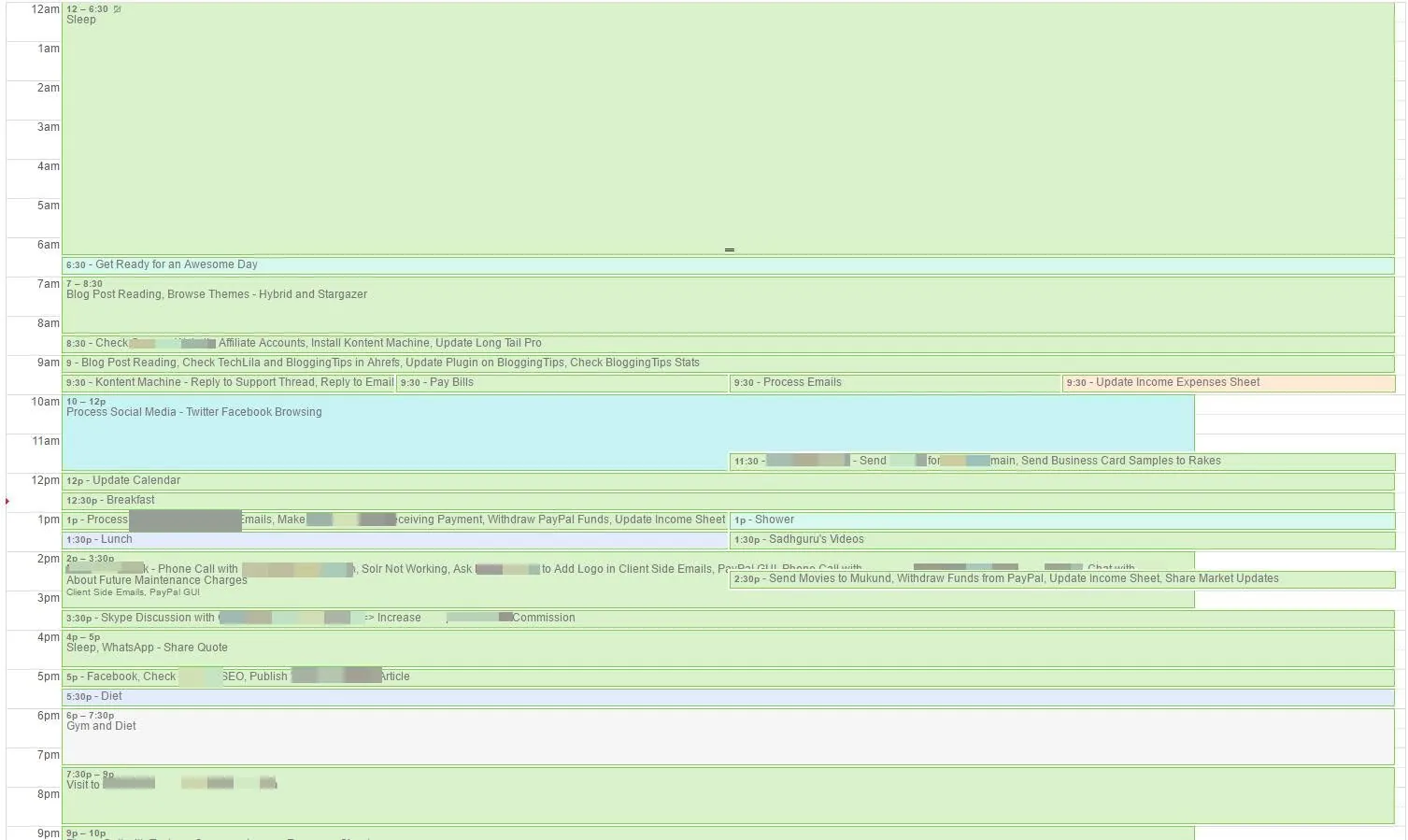
I note down all the things in Google calendar depending on the tasks. Please check the screenshot for more details. In short, I keep a record of the 24 hours, the same way I built [my 24-hour timetable](/my-24-hour-timetable/). I am following this technique from past eight-nine months and the results are awesome. It helps you realize the areas where you can avoid wasting your valuable time. Whenever you start noting down the things, you realize and feel ashamed of yourself that you have wasted time. Slowly, you stop wasting time because you have to note it down. How can you fool yourself? 😀
One day in the calendar, blocked hour by hour. Client names and one address are blocked out.
## Be Limitless Google Chrome Extension
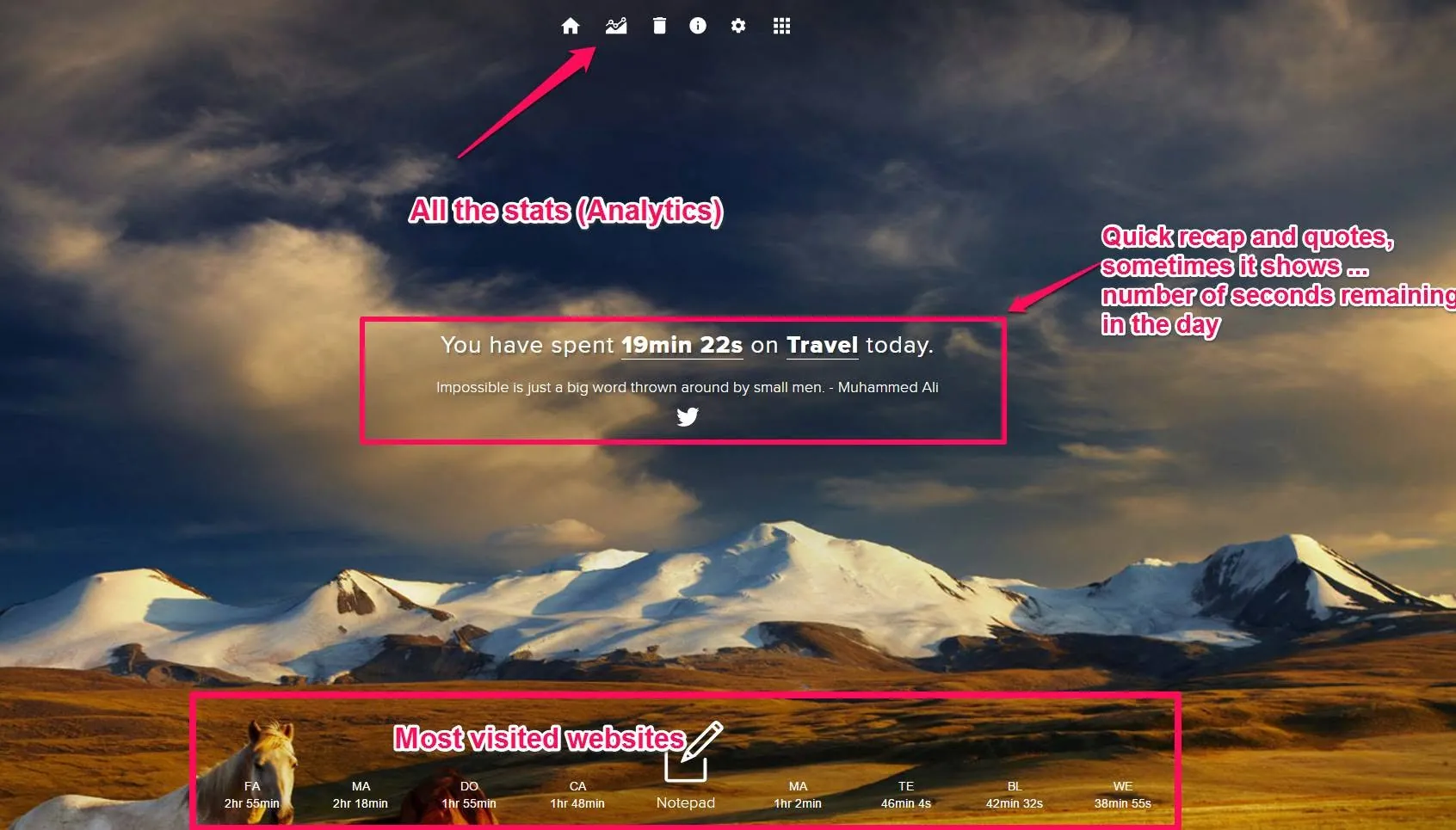
Limitless is one of my favorite Chrome extensions (Firefox addon also available) developed by Balaji Viswanathan (I hope you know this guy - intelligent fellow). Every time you open a new tab, Limitless greets you with a productivity tip, a pleasant background, and how much time you've spent on different site categories. It will remind you to stop procrastinating, schedule your work and manage your activities and achieve your daily goals.
Be Limitless on every new tab, annotated by me at the time.
Read more
## RescueTime Alerts
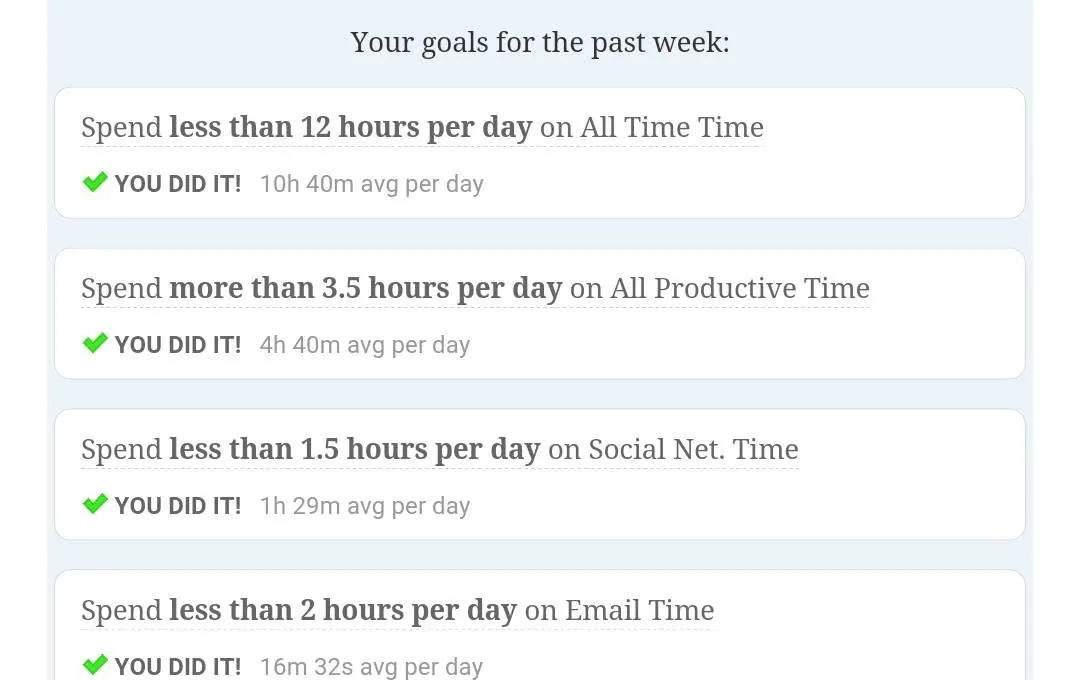
You can see the screenshot below, I have created four goals. In Weekly Summary email, I have a quick recap of my goals. Create goals as per your needs and try to accomplish them.
The four goals in the weekly RescueTime mail. All four met that week.
## QualityTime
I am using this Android app for a long time, it tracks all the app usages and shows the alert (based on your preference). It helps me to avoid using distracting apps like WhatsApp after a certain period of time.
Some day you will understand that time is your most valuable asset.
I have also just started following the Pomodoro technique and will share more details about it later.
Also, please share the tips and techniques that you're using in the comments below.